
How to Move Windows Taskbar to Bottom in Windows 10 & 11
Many Windows users enjoy personalizing their desktops, and the taskbar is a big part of that experience. Whether you like to keep your workflow clean or want quick access to your favorite apps, the position of the taskbar matters. Over the years, Microsoft has changed how the taskbar works in Windows 10 and Windows 11. For example, some people suddenly find their taskbar at the top or side after an update or by accident and want it back at the bottom. Others may be curious if it’s possible to move the taskbar in the latest Windows version, or want to know what’s different from before.

If you’re unsure how to move the taskbar to the bottom in Windows 10 or Windows 11, you’re not alone. The process can seem confusing, especially since Microsoft made changes between versions. This guide explains step-by-step how to move the taskbar to the bottom, offers solutions for common problems, and answers questions that many users have. You’ll also learn the reasons why your taskbar might move by itself and what to do if the normal options are missing. Let’s get started so you can get your Windows desktop looking and working exactly how you want.
Why The Taskbar Moves And Why It Matters
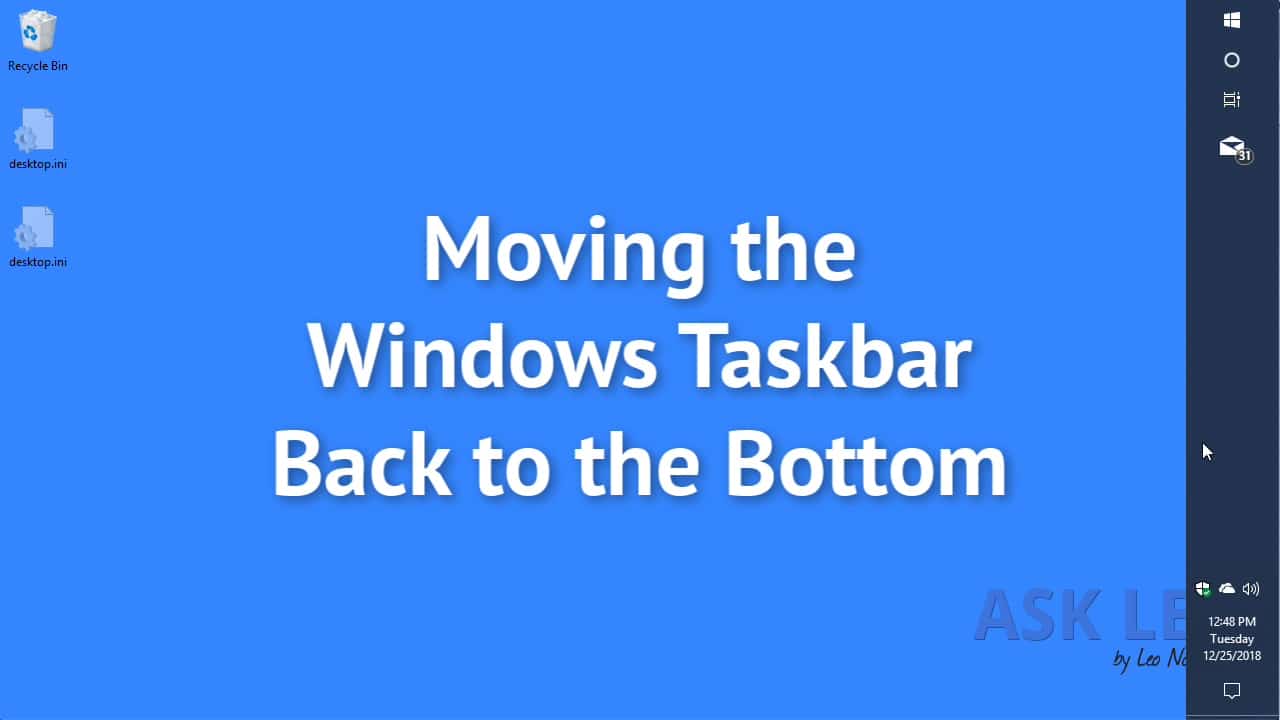
The Windows taskbar holds your Start button, open app icons, system tray, and clock. Its location affects how you use your computer. A taskbar at the bottom is familiar to most, but sometimes it appears at the top, left, or right. This can happen after a Windows update, accidental drag-and-drop, or when using a new device.
A misplaced taskbar can slow you down or hide important icons. For example, on a touch screen, a side taskbar might cover app buttons. For users with visual needs, the bottom position is usually easiest to see. Knowing how to control the taskbar location helps you work faster and feel more comfortable.
How To Move The Taskbar To Bottom In Windows 10
Windows 10 gives you control over the taskbar’s position. Here’s how to move it back to the bottom.
1. Unlock The Taskbar
Before you can move the taskbar, it must be unlocked. If the taskbar is locked, you cannot drag it.
- Right-click an empty area of the taskbar.
- If you see a check next to Lock the taskbar, click it to remove the checkmark. Now the taskbar is unlocked.
Tip: If you don’t unlock the taskbar, dragging won’t work. Beginners often miss this simple step.
2. Drag The Taskbar To The Bottom
With the taskbar unlocked:
- Click and hold an empty spot on the taskbar (not on an icon).
- Drag the taskbar towards the bottom edge of your screen.
- Release the mouse button. The taskbar should snap to the bottom.
This method works well on both desktop and laptop screens. If the taskbar doesn’t move, double-check that it’s unlocked.
3. Lock The Taskbar Again
To keep the taskbar from moving again by accident:
- Right-click an empty part of the taskbar.
- Click Lock the taskbar to add the checkmark back.
This step prevents accidental drags, especially if you share your computer or use a touch screen.
4. Change Taskbar Location In Settings
If dragging doesn’t work or you want more control:
- Right-click the taskbar and select Taskbar settings.
- Scroll to Taskbar location on screen.
- Choose Bottom from the dropdown menu.
This setting moves the taskbar instantly. It’s helpful if you use a keyboard or have trouble dragging with a mouse.
5. Restart Windows Explorer If Taskbar Is Stuck
Sometimes, the taskbar won’t move, even after trying the steps above. Restarting Windows Explorer can help:
- Press Ctrl + Shift + Esc to open Task Manager.
- Scroll to Windows Explorer.
- Right-click and choose Restart.
Your screen may flicker for a moment. This refreshes the taskbar and fixes minor bugs.
6. Use Keyboard Shortcuts For Accessibility
Windows 10 allows changing the taskbar position with just the keyboard:
- Press Windows + I to open Settings.
- Use Tab to move to Personalization, then select Taskbar.
- Tab to Taskbar location on screen, use arrow keys to select Bottom, and press Enter.
This is useful for users who can’t use a mouse or have accessibility needs.
7. What If ‘taskbar Location On Screen’ Is Missing?
If you don’t see the location option, your computer might have a custom setup or be managed by your company. In these cases:
- Make sure you’re running the latest version of Windows 10.
- Some registry or group policies can remove this setting. Ask your IT admin for help if needed.
8. Taskbar Automatically Moving? Disable Auto-hide
Auto-hide can make the taskbar seem to move or disappear. To turn it off:
- Right-click the taskbar, choose Taskbar settings.
- Toggle Automatically hide the taskbar in desktop mode to Off.
This keeps the taskbar visible at the bottom.
9. Restore Taskbar Defaults
If your taskbar is acting strangely, restoring defaults can help:
- Open Settings > Personalization > Taskbar.
- Reset options like Use small taskbar buttons and Combine taskbar buttons to default.
10. Use Registry Editor (advanced)
If none of the above work, you can use the Registry Editor. This is an advanced method—be careful, as mistakes can affect your system.
- Press Windows + R, type regedit, and press Enter.
- Go to: `HKEY_CURRENT_USER\Software\Microsoft\Windows\CurrentVersion\Explorer\StuckRects3`
- Back up the key before making changes.
- Find the Settings value, right-click, and choose Modify.
- Change the fifth row, 13th column value to 03 (for bottom).
- Restart your computer or sign out and in.
Warning: Only use this method if you are comfortable with Windows internals.
How To Move The Taskbar To Bottom In Windows 11
Moving the taskbar in Windows 11 is more complicated. Microsoft removed the easy drag-and-drop feature. Here’s what you need to know.
1. Understand Windows 11 Taskbar Limitations
In the initial release of Windows 11, the taskbar is locked to the bottom. Microsoft did not include a simple way to move it to the top, left, or right. This is a major change from Windows 10.
Key insight: Many users search for the taskbar location option, but it is missing by design in Windows 11.
2. Change Taskbar Alignment (center Vs. Left)
While you can’t move the taskbar to the sides or top, you can shift the icons:
- Right-click the taskbar and select Taskbar settings.
- Find Taskbar behaviors.
- Under Taskbar alignment, choose Left or Center.
This only changes the icons’ position, not the entire taskbar.
3. Use Registry Hack To Move Taskbar (not Officially Supported)
Some users have found a way to move the taskbar using the Registry Editor, but it’s not reliable and may cause bugs:
- Press Windows + R, type regedit, and press Enter.
- Navigate to: `HKEY_CURRENT_USER\Software\Microsoft\Windows\CurrentVersion\Explorer\StuckRects3`
- Right-click Settings, choose Modify.
- Find the fifth row, 13th value. Change it to:
- 00 for left
- 01 for top
- 02 for right
- 03 for bottom
- Restart Windows Explorer or your PC.
Note: After Windows updates, these hacks often stop working. You may also see glitches or missing taskbar features. Microsoft does not support this method.
4. Third-party Tools: Pros And Cons
Some programs claim to let you move the taskbar in Windows 11, such as Taskbar11 or StartAllBack. These tools can help, but have risks:
- They may not work after Windows updates.
- They can cause compatibility problems or crashes.
- You may have to pay for advanced features.
Tip: Always download tools from official sources. Read reviews and back up your data first.
5. Why Microsoft Locked The Taskbar In Windows 11
Microsoft redesigned the taskbar in Windows 11 for simplicity and touch devices. Locking it to the bottom reduces bugs and keeps the interface modern. Many users miss the old flexibility, but Microsoft has not added this feature back as of 2024.
For the latest official features, see Microsoft’s page: Microsoft Taskbar Support.
Common Problems When Moving The Taskbar
Changing the taskbar location is usually simple, but sometimes issues happen. Here are the most common problems and how to solve them.
Taskbar Won’t Move
- Check if the taskbar is locked.
- Close any apps that may be “docking” to the edge of the screen.
- Try moving the taskbar in Taskbar settings.
- If all else fails, restart Windows Explorer using Task Manager.
Taskbar Disappears Or Auto-hides
- Go to Taskbar settings and turn off auto-hide.
- Check if your display settings are set to Tablet mode (Windows 10).
- For dual monitors, make sure taskbar is enabled on all screens.
Taskbar Resets After Restart
- Some third-party software or updates may cause this.
- Try disabling any desktop customization tools.
- Run Windows Update for the latest bug fixes.
Taskbar Features Missing After Moving
- Some features, like the system tray, may not work if you force the taskbar to the top or side using unsupported methods.
- Return the taskbar to the bottom using official steps if you lose functionality.

Data: Windows 10 Vs Windows 11 Taskbar Position Options
It helps to see the differences between Windows 10 and 11 taskbar controls at a glance:
| Feature | Windows 10 | Windows 11 |
|---|---|---|
| Move taskbar to top/side/bottom | Yes (officially supported) | No (bottom only by default) |
| Drag-and-drop taskbar | Yes | No |
| Taskbar alignment (icon position) | No | Yes (left or center) |
| Registry hack possible | Yes (stable) | Yes (unstable, not recommended) |
10 Key Tips For Managing The Taskbar
Here are ten important tips to keep your taskbar working well and where you want it:
1. Always Lock The Taskbar
After moving the taskbar to your desired position, lock it to avoid accidental movement. This is especially helpful for users who share devices or use touchscreens.
2. Use Taskbar Settings For More Control
The Taskbar settings menu offers extra options, like icon size, combining buttons, and hiding system icons. Explore these settings to customize your experience.
3. Avoid Third-party Tools Unless Necessary
While programs like TaskbarX or StartAllBack can offer extra features, they may cause problems after Windows updates. Use them only if you really need advanced customization.
4. Back Up Before Editing The Registry
Editing the Windows Registry is risky. Always back up your registry and important files before making changes. A small mistake can cause system errors.
5. Use Multiple Displays? Check Taskbar Settings
If you use more than one monitor, you can show or hide the taskbar on each screen. Go to Taskbar settings > Multiple displays and adjust as needed.
6. Watch For Updates That Reset Your Taskbar
Windows updates sometimes reset the taskbar position or settings. After a big update, double-check your preferences and adjust them if necessary.
7. Troubleshoot With Windows Explorer Restart
If the taskbar freezes or won’t move, restarting Windows Explorer usually helps. This is faster and safer than rebooting your computer.
8. Use Keyboard Navigation For Accessibility
If you have trouble with a mouse or touchpad, you can still move and customize your taskbar using keyboard shortcuts in Settings.
9. Restore Defaults If You Have Problems
If your taskbar is glitchy, go back to default settings in Taskbar settings. This can solve many common issues.
10. Check For Group Policy Or Admin Restrictions
On work or school computers, some options may be blocked by system admins. If you can’t move your taskbar or settings are missing, ask your IT department for help.
Data: Taskbar Problems And Solutions Summary
Here’s a quick reference for common issues and their fixes:
| Problem | Possible Cause | Solution |
|---|---|---|
| Taskbar won’t move | Locked taskbar | Unlock taskbar in settings |
| Taskbar disappears | Auto-hide enabled | Turn off auto-hide |
| Features missing | Registry hack or third-party tools | Restore defaults, update Windows |
| Settings missing | Admin/group policy restrictions | Contact IT admin |
| Taskbar resets after restart | Windows update or corruption | Check updates, repair system |
Examples: Real World Taskbar Issues
- After a Windows update, John’s taskbar moved to the top. He unlocked it, dragged it back to the bottom, and locked it again to keep it there.
- Maria uses dual monitors. Her taskbar was only on her main screen. In Taskbar settings, she enabled it for all displays.
- Ahmed tried a registry hack in Windows 11 to move the taskbar to the top, but lost the system tray. He returned it to the bottom and the tray came back.
These examples show the importance of using official features whenever possible.
Advanced: Registry Editor Taskbar Location Values
For those comfortable with advanced options, here’s what the taskbar location values mean in the Windows Registry (`StuckRects3`):
- 00 – Left
- 01 – Top
- 02 – Right
- 03 – Bottom
Editing this value changes the taskbar’s position, but it is only fully supported in Windows 10.
Pro tip: Always export your registry before making changes.
Practical Advice For Non-native English Users
If English isn’t your first language, here are some suggestions:
- Use the Windows Settings app in your preferred language for easier navigation.
- Look for official Microsoft guides in your language.
- If you’re unsure, ask a tech-savvy friend or family member to help.

Frequently Asked Questions
How Do I Move The Taskbar To The Bottom If It’s Stuck At The Top?
Unlock the taskbar first by right-clicking an empty area and unchecking Lock the taskbar. Then, click and drag the taskbar to the bottom. If it won’t move, try changing the location in Taskbar settings or restarting Windows Explorer using Task Manager.
Why Can’t I Move The Taskbar In Windows 11?
In Windows 11, Microsoft locked the taskbar to the bottom. There is no official way to move it to the top or sides. Registry hacks or third-party tools may work, but they’re not supported and can cause problems.
What Should I Do If My Taskbar Disappears?
Check if auto-hide is on in Taskbar settings. If so, turn it off. Also, make sure you’re not in Tablet mode (Windows 10) and that your display settings are correct.
Will Moving The Taskbar Affect My Open Windows?
No, moving the taskbar to a different edge of the screen will automatically adjust your open windows. Windows will snap to fit the new space, so you won’t lose any work.
Are There Risks In Using Registry Hacks Or Third-party Tools?
Yes. Registry changes can damage your system if done wrong. Third-party tools may stop working after updates or cause errors. Always back up your data and use official features when possible.
Getting your taskbar back to the bottom in Windows 10 is straightforward, while Windows 11 requires more care and may not fully support other positions. No matter your version, these tips will help you keep your desktop neat and easy to use. For more official information, visit the Microsoft Taskbar Support page. With these steps, you’ll have full control over your Windows workspace.